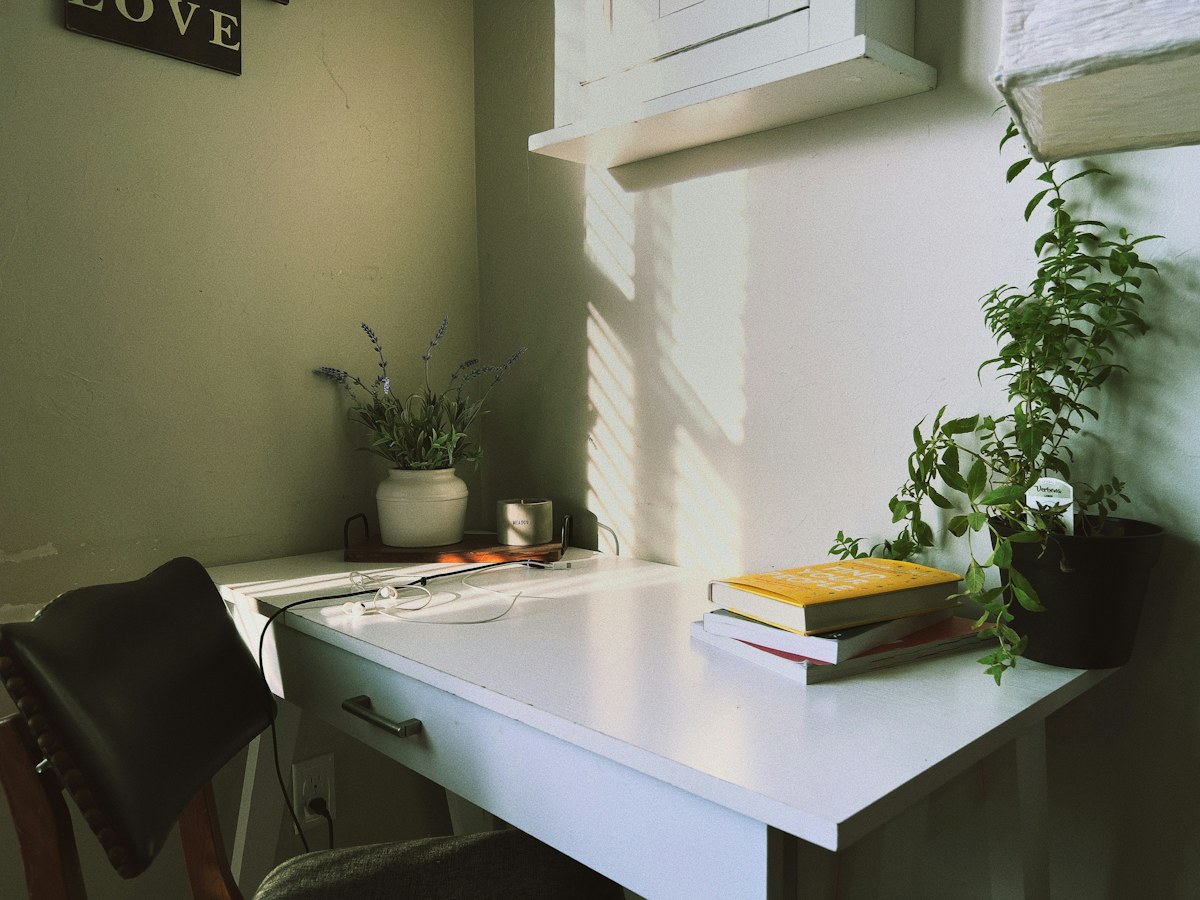
A real page to try things on. Read a story, explore a photo, pause a moving sample, and make a reading plan. Adjust the widget as you go and notice what changes.
Try Bigger text, Readable font, Text spacing, Line height, and Text align.
An afternoon without the rush
Imagine an afternoon with no need to hurry. You find a place near a window, set down a drink, and open something you have been meaning to read. It might be a short story, a recipe from a friend, or a guide to somewhere new. The point is not to finish quickly. It is to have a little space to take it in.
On a screen, that space can look different for everyone. You might prefer larger letters, more room between words, or a font that feels familiar. Someone else may want fewer images or a different contrast setting. This passage gives you several lines of ordinary text to compare as you explore those choices.
Find a comfortable pace
Read this paragraph once with the page as it is. Then choose one adjustment in the widget and read it again. Notice the shape of the words, the distance between lines, and how easily you can return to the start of the next sentence. Keep what feels useful and reset anything that does not.
Change one setting at a time to see its effect.
Try a preset, then tailor individual adjustments.
Use Reset all adjustments to return to the original page.
There is no single right way to read a page. A useful starting point is a page that lets you find your own.
An original sample passage for comparing reading adjustments.
Try Dictionary in the widget to look up a word from the passage, such as “afternoon”. It opens an external dictionary only when you submit a word.
See the page in a different light.
Try Contrast, Smart contrast, Saturation, and Hide images.
Compare these colors with the photograph at the top of the page. Switch saturation between grayscale, low, and high, or try a different contrast setting. Hide images to remove the photograph while keeping its caption and the surrounding text.
Terracotta
Forest green
Indigo
Warm gold
This page is designed to be readable before any adjustment. Colors have text labels; you do not need to distinguish the swatches to understand them.
Movement you control.
Start the sample, then try Pause animations in the widget.
Nothing here moves automatically. Start this short example to move a book marker along the track. Stop it with the button below or use the widget. The sample also respects your device’s reduced-motion preference.
The sample is still. Start it whenever you are ready.
Find your way through the page.
Try Highlight links, Large cursor, Tooltips, and Page structure.
Use the links below, or open Page structure in the widget to jump between headings. Enable Tooltips, then hover over or focus this glossary link to explore the term wayfinding.
Wayfinding means understanding where you are and finding a route to where you want to go.
Example reading routines, not recommendations
Sample routine
Time
An adjustment to explore
A short passage
5 minutes
Bigger text
A longer article
10 minutes
Line height and text spacing
An illustrated guide
15 minutes
Saturation or hide images
Build a small reading plan.
Use Tab to move through the form and arrow keys to choose a reading time.
A working sample form with a select, radio buttons, and a checkbox. It creates an example plan on this page only. Nothing is submitted or saved, and no account or personal details are needed.
Different languages. Your choice of controls.
Open Widget settings → Language, then search by native name, English name, or language code.
These sample phrases show different writing systems. Each has a language label for assistive technology. Changing the widget language translates its controls, not the content of this page.
Baca dengan selesa.Malay
อ่านในแบบที่เหมาะกับคุณThai
Đọc theo cách phù hợp với bạn.Vietnamese
用适合自己的方式阅读。Simplified Chinese
உங்களுக்கு ஏற்ற முறையில் படியுங்கள்.Tamil
اقرأ بالطريقة التي تناسبك.Arabic
A few things worth knowing.
How do I start over?
Choose Reset all adjustments in the widget to restore the page’s original presentation. Your chosen widget language and position stay as they are.
Does changing the language translate this page?
No. The widget language changes its menu, controls, and feedback. The EN / BM switch in the page header changes the playground content between English and Bahasa Melayu.
What does the dictionary send?
The Dictionary tool opens an external Wiktionary page only when you choose to look up a word. The word you enter becomes part of that page’s address.
Does this widget make every website accessible?
No. Visitor adjustments can help with individual preferences, but they do not replace accessible website design, assistive technology, or a proper accessibility review.